
Install the app and create an account
Create an account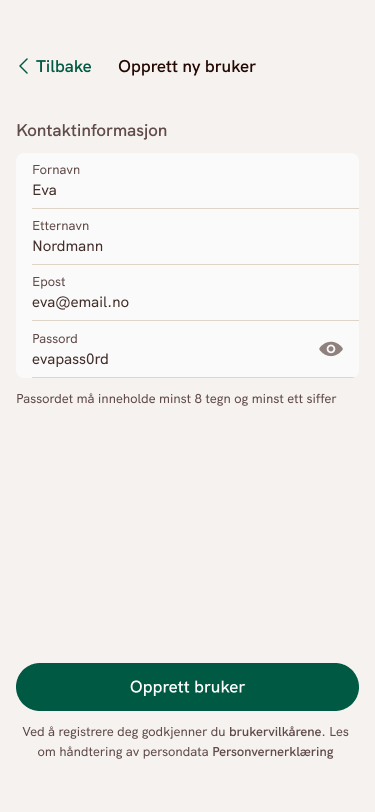
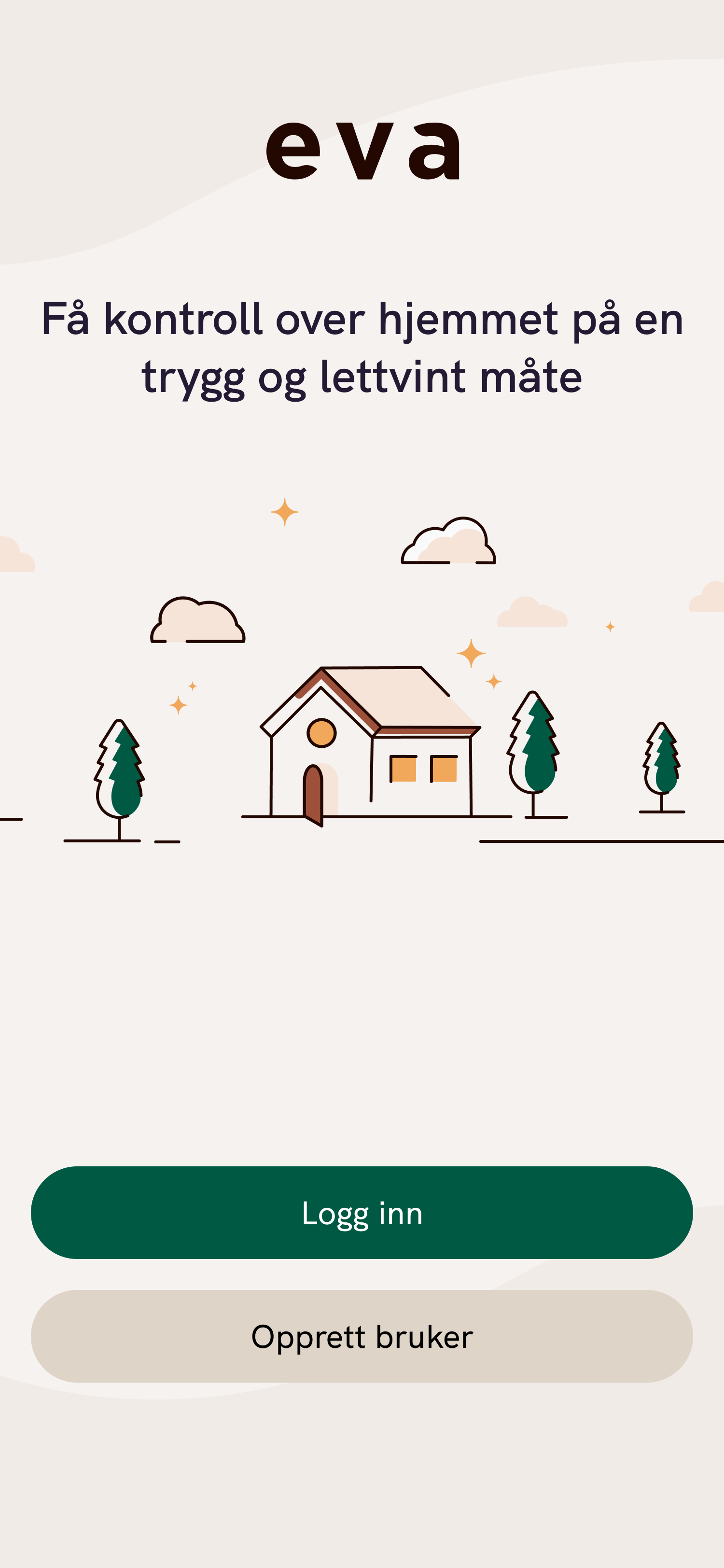
- Open the Eva Smart Home app
- Select Create account
- Enter your contact information
- Tap Create account
- Open your email inbox and confirm your email address
If you can't log in and receive an error about your email or password, check that your email address is correct and tap Forgot password. Follow the instructions sent to you by email.
Get started with devices and rooms
How to add a device
- Open the Eva Smart Home app
- Tap + (add) in the upper-right corner
- Select Add device
- Select the device brand, or select Other device or Quick connection
- Select the device and follow the instructions in the app
How to create a room
- Open the Eva Smart Home app
- Tap + (add) in the upper-right corner
- Select Add room
- Name your new room, or select one from the list
- Tap Save
How to edit and delete a device/room
- Select the device or room you want to edit/delete from Room overview on the Home page in the app
-
Edit or delete a room: Tap the gear icon (settings) in the upper-right corner
- Edit the Room name and Room icon
- Select Delete room in the lower-left corner → confirm deletion of the room
-
Edit or delete a device: Tap the device to open the Details page and select Device settings
- Edit the Name and Icon
- Select Delete device at the bottom of the page → confirm deletion of the device
Automations and scenes
What are automations and scenes
Automating a home can be complex, but when set up correctly, it can also be pure magic. To set up automation correctly in Eva, we use both scenes and automations. Simply put, scenes define what should happen, while automations define when it should happen. Together, they are powerful tools for automating your home. Imagine a home that automatically reduces power consumption and turns off the lights when you go to bed, or automatically turns off the alarm when you get home from work.
A scene is, in short, a command to one or more devices in the smart home that tells them which settings to use when the scene is activated. Scenes set the lights and heating, for example, exactly the way you want them. Scenes can be created for the entire home or for individual rooms. Examples of scenes include morning, at work, and night. There are no limits to how many scenes you can create, and a device can be included in multiple scenes.
Read more about automations and scenes here.
Eva Smart Home and door locks
Eva Smart Home is compatible with door locks from Yale Doorman (L3 and V2N) and ID Lock (202 Multi and 150).
To connect the door lock to the Eva Smart Home system, you must use our own door lock module:
- Yale Doorman → Eva Smart Home Yale Doorman door lock module
- ID Lock → Eva Smart Home ID Lock door lock module
For more information about installation and guidance:
Edit the home page in the app
How to customize the order
- On the Home page, scroll all the way to the bottom
- Select Customize home page
- Customize the order on the home page
- Tap Save (in the upper-right corner)
Customize room names, the order of rooms, and scenes
Customize rooms
- Select the room you want to customize under Room overview on the Home page
- Tap the gear icon in the upper-right corner
- Change the room name, the room icon, the scenes for the room, or delete the room
Change the order
- Tap Edit > to the right of Room overview on the Home page
- Adjust the order of the rooms by pressing and dragging them up or down
Scenes
Tap Edit > to the right of Scenes on the Home page
- Edit a scene - tap the gear icon
- Change the order of scenes - tap a row, press and hold, and drag it up or down
Move a device to another room
- Tap the gear icon in the upper-right corner of the Home page
- Select Devices
- Open the device you want to move
- Select Device settings
- Tap Room
- Select the room you want to move it to
- Tap Save (in the upper-right corner of the device settings)
Administration
Find Administration by tapping the gear icon in the upper-right corner of the Home page
What you can do here
Home
- Users: View and manage who has access to the home, and add or remove users
- Devices: View all connected devices and associated details
Alarms: Overview of active alarms
Settings
Home: Change information about your home
Notifications: Select which notifications you want to receive
Eva Alarm (if subscribed): Settings for the alarm system
Energy management (if subscribed): Settings for power and energy management
Updates
- Eva Hub: Automation and timing for when Eva Hub is updated
Support
- Devices tested with Eva
- Eva Online Store
- Customer service
- Privacy policy
Temperature alerts and air quality
Temperature
All devices that measure temperature can send a push notification in the app if the temperature becomes too high or too low.
- Tap the gear icon in the upper-right corner of the Home page
- Select Devices
- Open a device that measures temperature:
- Thermostat, smoke detector, water sensor, door/window sensor, etc.
- Tap Temperature alert
- Turn on the alert if it is disabled, and adjust the minimum and maximum temperatures
- Tap Save (in the upper-right corner)
Air quality
With an air quality or humidity sensor, you can monitor your indoor climate. For example, with a Frient Air Quality sensor or Frient Humidity sensor. The Eva Smart Home app can alert you if the humidity is too high or too low, or if the air quality is poor (indicating when you should open a window).
A humidity sensor provides alerts about temperature and humidity, while an air quality sensor also provides alerts about TVOC measurements:
- TVOC: gases and particles emitted by various chemicals found in everyday products and in the air we exhale. Excessive TVOC in the air results in poor air quality.
Users and transferring a home
View users and add a user
- Tap the gear icon in the upper-right corner of the Home page
- Select Users
- Overview of everyone who has access to the home + their role
- Tap a user to view their information and the Remove user from home function
- Tap + (add) in the upper-right corner
- Select Add access
- Enter the email address of the user you want to invite and the role they should have:
- Admin: can change and control everything in the home
- User: can control devices, but cannot change settings
Transfer a home
When you transfer a home, you will lose your access, but other users of the home will retain their access as before. Remove users from the home before transferring it if other users should not continue to have access.
- Tap the gear icon in the upper-right corner of the Home page
- Select Users
- Tap + (add) in the upper-right corner
- Select Transfer home
- Enter the email address of the user who will take over the home, and the date and time of the transfer
Comments
0 comments
Please sign in to leave a comment.